> For the complete documentation index, see [llms.txt](https://herd-security.gitbook.io/herd-security-docs/llms.txt). Markdown versions of documentation pages are available by appending `.md` to page URLs; this page is available as [Markdown](https://herd-security.gitbook.io/herd-security-docs/api-documentation/authentication.md).
# Authentication
How to create Herd API keys, authenticate requests with the X-API-Key header, and revoke access when a key is no longer needed.
Every request to the Herd API is authenticated with an **API key** sent in the `X-API-Key` header. Keys are created in the Herd dashboard and are scoped to your organization: a key can only read its own organization's data.
{% hint style="info" %}
Connecting an AI assistant rather than writing an integration? The [MCP server](/herd-security-docs/api-documentation/mcp-server.md) uses OAuth with your normal Herd sign-in instead of an API key, and its tokens are separate from `/api/v1` access.
{% endhint %}
## Creating an API key
1. Log into your Herd dashboard.
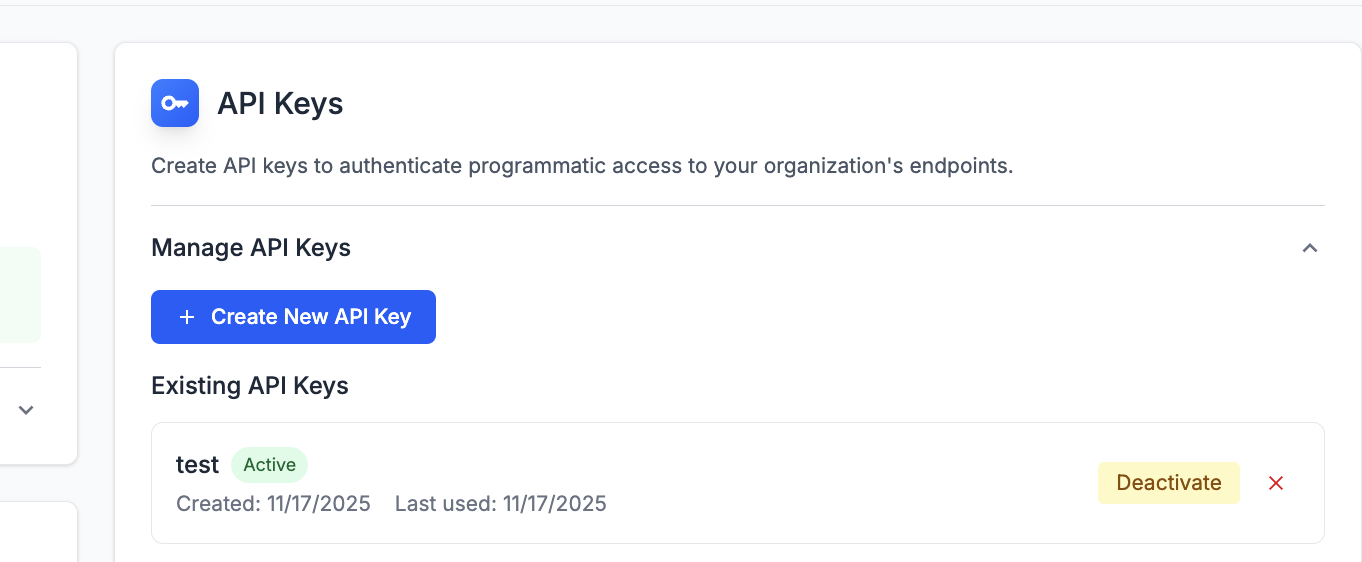
2. Navigate to **Settings → General → API keys**.
3. Click **Create New API Key**.
4. Give the key a recognizable name (for example, *Production API Access*) and click **Create API Key**.
{% hint style="warning" %}
**Save the key securely — it is shown only once.** Herd never displays the full secret again. If you lose it, delete the key and create a new one.
{% endhint %}
Managing API keys requires the **Integrations** permission (`org.integrations`) in your Herd role; Admins always have it. See [Managing Roles, Groups, and Permissions](/herd-security-docs/how-to-documentation/managing-roles-groups-and-permissions.md) and the [API Keys settings guide](/herd-security-docs/settings/settings/api-keys.md) for the full key-management walkthrough.
## Key format
```
herd__
```
* `herd_` — fixed prefix.
* `` — the key's public identifier. This part stays visible in the key list in **Settings → General → API keys**.
* `` — a 64-character hexadecimal secret, shown only once at creation. Herd stores only a hash of it.
## Using your key
Send the full key in the `X-API-Key` header on every request:
```shellscript
curl -H "X-API-Key: herd_..." "https://api.herdsecurity.io/api/v1/users"
```
A request with a missing, malformed, inactive, or deleted key is rejected with **HTTP 401 Unauthorized**.
## Revoking access
From **Settings → General → API keys** you can:
* **Deactivate** a key — the key immediately stops authenticating, but can be re-activated later.
* **Delete** a key — the key immediately and permanently stops authenticating. This cannot be undone.
{% hint style="info" %}
Treat API keys like passwords: store them in a secrets manager, never commit them to source control, and use a separate key per integration so you can revoke one without affecting the others.
{% endhint %}