> For the complete documentation index, see [llms.txt](https://herd-security.gitbook.io/herd-security-docs/llms.txt). Markdown versions of documentation pages are available by appending `.md` to page URLs; this page is available as [Markdown](https://herd-security.gitbook.io/herd-security-docs/simulations/voice-simulations/create-and-launch-a-campaign.md).
# Create & Launch a Voice Campaign
Build a voice campaign: pick an attack type, choose who gets called, set the timing, and launch.
A voice campaign takes one attack type and calls the audience you choose. Creating it saves a draft; nobody is called until you launch it.
***
## Step 1: Create the campaign
1. Expand **Simulations** in the sidebar, click **Voice**, and stay on the **Campaigns** tab.
2. Click **New campaign**.
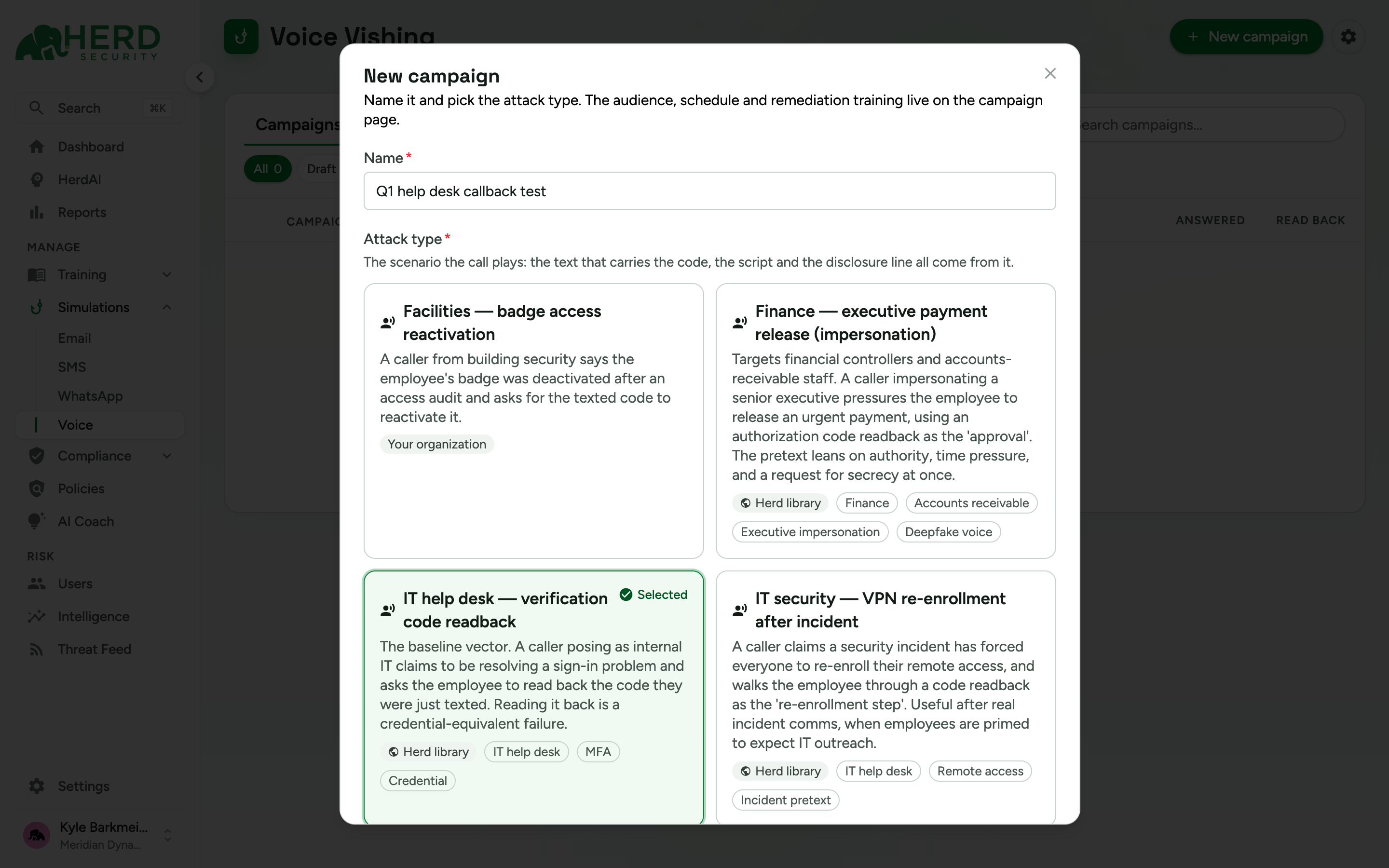
3. Give the campaign a clear **name**, for example "Q1 help desk callback test".
4. Pick the **attack type** it will use. Each card shows the scenario and its tags, badged **Herd library** or **Your organization**. Attack types still waiting for approval appear locked and can't be selected — see [Approving new attack types](/herd-security-docs/simulations/voice-simulations/attack-types.md#approving-new-attack-types).
5. Click **Create**.
The campaign opens as a **Draft**, with **Attack type**, **Audience**, and **Results** tabs. Everything else — the audience, the timing, and remediation training — lives on this page. The **Results** tab stays greyed out until the campaign has run.
***
## Step 2: Choose who gets called
Open the **Audience** tab.
* **Me** adds just you, which is the easiest way to hear exactly what your team will hear before you send it to anyone else. Running one call against yourself first is worth the two minutes.
* **Quick sets** build an audience in one click:
* **Everyone**
* **Never called** — people who haven't been in a voice campaign before.
* **Read the code back in the last 90 days** — the people who already failed one, for a follow-up.
* **New joiners**
* The **Add people or groups...** search adds individuals or whole groups by name.
* **Define by rule** adds everyone matching criteria you set (department, title, risk and more), saved as a group named `Audience: ` and checked again at launch. Consent and caller-ID checks still apply at launch. See [Define an audience by rule](/herd-security-docs/simulations/phishing-simulations/create-campaign.md#define-an-audience-by-rule).
The table below lists everyone you've added with their **Before sending** state, and the chips above it break the audience into **All**, **Ready**, and **Unreachable**.
### Who gets skipped
People who can't be called are marked **Unreachable** with the reason beside it, and are skipped at launch so your call count stays accurate:
| Reason | What it means |
| ----------------------- | ----------------------------------------------------------------------------------------------------------------------------------- |
| **No phone number** | There's no mobile number on their profile. |
| **Opted out of texts** | They opted out of simulation text messages, so Herd never calls them. |
| **Shared phone number** | More than one person in this audience has this number. Herd places **one** call to it rather than calling it again for each person. |
| **On leave** | They're recorded as on leave. |
| **Inactive** | Their account isn't active. |
***
## Step 3: Set the timing
The **Timing** rail on the right of the **Audience** tab controls when the campaign runs:
* **Send now** — calls start as soon as you launch.
* **Schedule** — pick a date and time. Scheduled calls go out **only during business hours**, unless **Ignore business hours** is ticked. Times in the past aren't accepted.
***
## Step 4 (optional): Assign training on failure
On the **Attack type** tab, turn on **Assign training on failure** to send follow-up training automatically to anyone who reads the code back. It's the fastest way to turn a failed call into a teachable moment while it's still fresh.
***
## Step 5: Launch
Beneath the timing rail, a summary reads **Sends to N people** (plus how many it skips as unreachable), above the launch button itself: **Call N people** (**Call 1 person** for one) when the campaign sends now, or **Schedule** when you picked a date and time. There's also a **Launch** button in the page header.
Either way, a **Launch voice campaign** dialog asks you to confirm, spelling out that this texts each recipient an inert code and places **a real phone call** to them, and that anyone who reads the code back is recorded as failing and raises a high-weight risk event on their profile. Click **Launch campaign** to go.
{% hint style="warning" %}
**A voice campaign can't be paused or cancelled once calling has started.** Check the audience and the skip reasons before you confirm. Until calling starts you can still unschedule a scheduled campaign — see [Managing Voice Campaigns](/herd-security-docs/simulations/voice-simulations/managing-campaigns.md).
{% endhint %}
Herd takes you to the campaign's [**Results**](/herd-security-docs/simulations/voice-simulations/campaign-results.md) tab, which fills in as codes go out and calls connect.